Personal Banking
Chelsea Groton’s Debit Card is available on mobile wallet
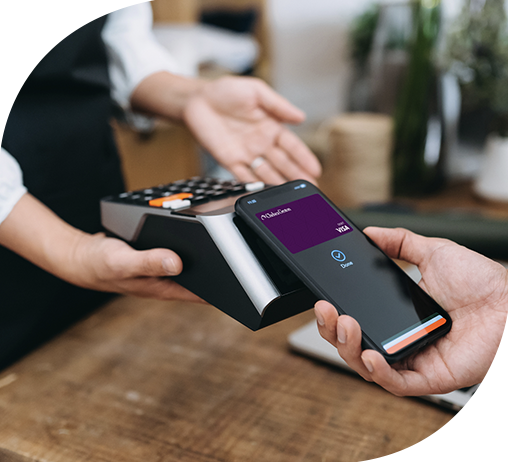
Between work, errands, and everything in between, convenience matters. Link your Chelsea Groton debit card to the encrypted mobile wallet on your smartphone or smartwatch and make quick, secure payments in-store or online without reaching for your wallet.
Benefits of mobile wallets:
- Secure Processing – Your card number isn’t shared. When a payment is made in-store or online, a one-time code is generated in place of your debit card number, so your card number is never stored on your device or with merchants. All of your information remains safe and secure.
- Convenient Purchasing – Make in-store, online, or in-app purchases without reaching for your physical debit card. Simply tap your phone or smartwatch, or click a button to apply your secure payment credentials.
- All the perks of using a Chelsea Groton debit card – Chelsea Groton will continue to monitor all purchases for fraud, and may even ask you to verify certain purchases. There are no additional fees for using this service.
- Keeps things organized – Store your debit card alongside digital tickets, passes, and more in your mobile wallet so all your essentials are in one place.
Get started:
- Log into the Chelsea Groton mobile app or Online Banking
- Select Smart Card from the menu and tap “Add to Wallet”
- Follow the prompts to finish setup
How to make a payment using your mobile wallet:
Once your Chelsea Groton debit card is added to your smart device, you’ll have a faster, easier way to make everyday purchases.
In Person
- Hold your device near the field communication reader on the credit card terminal or open the mobile wallet app on your device.
- Select your Chelsea Groton debit card.
- Follow your device’s instructions to authenticate the purchase (i.e. biometric, face ID, PIN if applicable).
Online
- Choose your mobile wallet payment option at check out.
- Select your Chelsea Groton debit card.
- Follow your device’s instructions to authenticate the purchase (i.e. biometric, face ID, PIN if applicable).
Note: For first-time purchases, you may be asked to confirm your contact information; your information will be saved for future payments. Samsung Pay is not eligible for online purchases.
Questions? See our FAQs below or call our Customer Care team at 860-448-4200.
Frequently Asked Questions
Mobile wallets allow you to link your Chelsea Groton debit card to the wallet on your mobile device so you may use your debit card with Apple Pay, Google Pay or Samsung Pay.
Using your card in a mobile wallet adds an extra layer of convenience and security when shopping. When your card is in your mobile wallet, you may use your mobile device to make purchases in person and online without needing to have your physical debit card handy.
Mobile wallets use tokenization technology to encrypt your debit card number. When you check out in person or online using your mobile wallet, Visa uses a token value in place of your debit card number so that your card information remains secure.
- Log into the Chelsea Groton app or Online Banking
- Select Smart Card from the menu and tap “Add to Wallet”
- Follow the prompts to finish setup
To set your Chelsea Groton debit card as your default payment card, head to your device’s wallet settings and follow the instructions for setting a default card. Since steps can vary by device, your phone’s help section is the best place to find quick, step-by-step guidance.
Yes! The mobile wallet uses a tokenization method to encrypt your debit card number.
When your card is entered into your mobile wallet, Visa issues a token that is used in place of your actual card number when processing payments from your mobile wallet. This token value is different from your card number and is stored in a secure digital vault with Visa.
No, there are no fees to use your Chelsea Groton debit card in your mobile wallet.
Mobile wallets are accepted at many merchants, both in-person and online. Just look for the wallet or antennae logo at checkout or simply try your payment. Many merchants will accept your payment, however, some may not display the logos.
-
- Samsung Pay is not available for use online.
Through Smart Card, you can place a temporary block on the card by clicking the toggle button next to “Card is ON” to restrict the card. All transactions, except for recurring payments, will be denied, then contact our Customer Care Center at 860-448-4200. If you find your card in a secure location, you may return to Smart Card and tap Unlock Card to un-restrict your card.
No. If you turn off your card using online or mobile banking, you will need to turn it back on before using it. This can be done while you’re at the store provided you have internet access.
Many devices made in the past few years support mobile wallets, including many new smartwatches. Please check with your device manufacturer for more details.
 .
.  .
. 

Apple, the Apple logo, Apple Pay, iPhone, TouchID and FaceID are trademarks of Apple Inc., registered in the U.S. and other countries.
Google Pay and the Google logo are trademarks of Google LLC.
©2018 Google LLC, used with permission. Google and the Google logo are registered trademarks of Google LLC.
Samsung Pay and the Samsung logo are trademarks of Samsung Electronics Co., Ltd.
Many devices made in the past few years support mobile wallets, including many new smartwatches. Please check with your device manufacturer for more details.